Flow: Online Store Catalog Setup
This article demonstrates how to set up a complete product catalog from scratch, including multi-location inventory tracking, customizable products with options and modifiers, and optional product enhancements like brands and promotional ribbons using the Wix Catalog v3 APIs.
Note: This flow creates supporting elements first so you can include all their IDs in a single Create Product call. You can also create products first and add supporting elements later with Update Product.
Catalog setup flow
The following diagram shows the complete catalog setup flow, including optional enhancements.
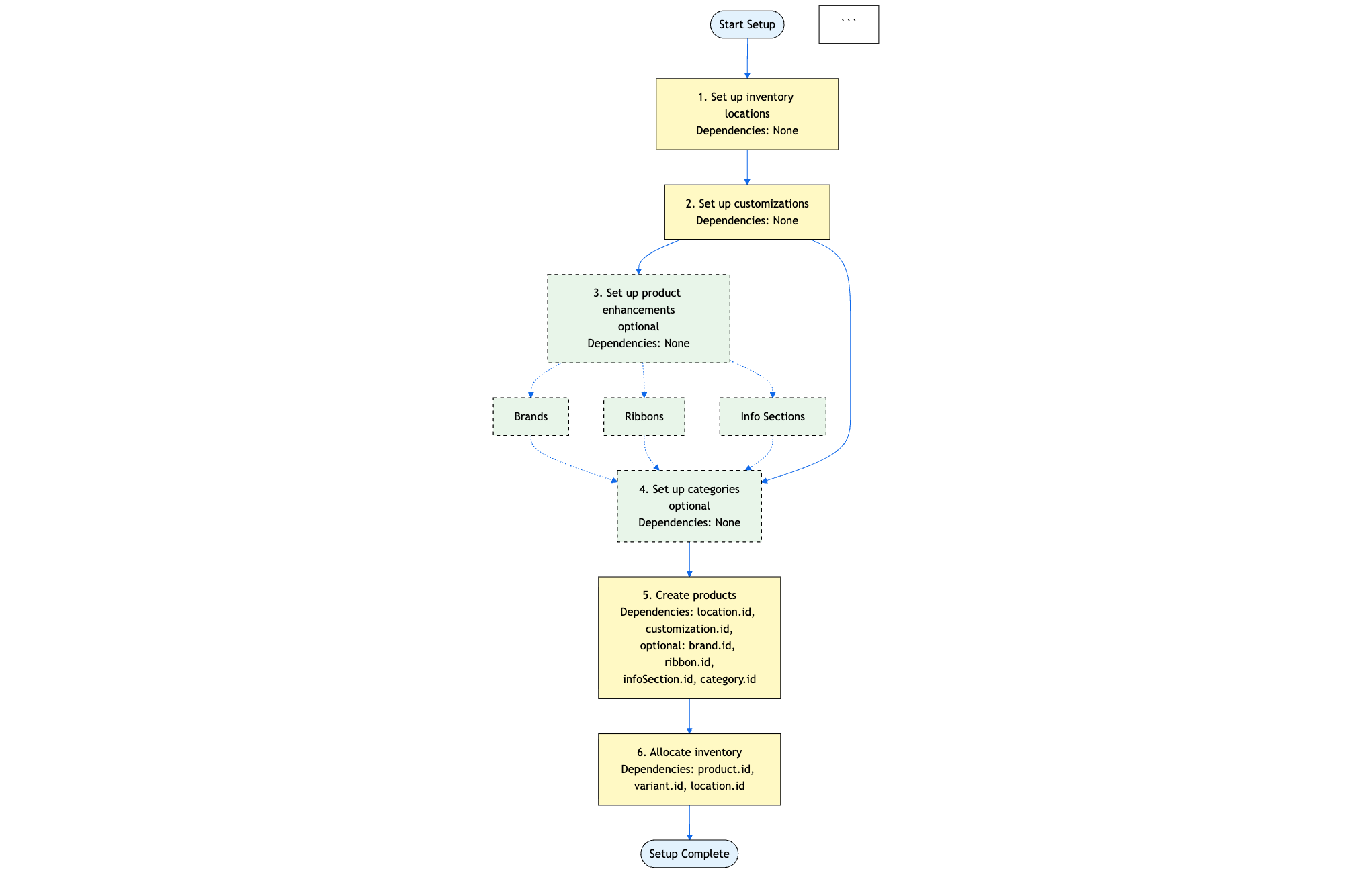
Step 1 | Set up inventory locations
Configure the locations where you store inventory. This enables multi-location inventory tracking so you can manage stock across warehouses, retail stores, or fulfillment centers.
Actions:
- Call Query Stores Locations to check existing locations.
- If you need additional locations, call Create Location in the Locations API with
"INVENTORY"inlocationTypes. Subsequent Query Stores Locations calls return the new location. - Save the
location.idvalues for use in Step 5.
Result: You now have inventory locations.
Step 2 | Set up customizations
Set up product options like size or color that create variants, and modifiers like gift wrapping that add optional features. Create customizations first that define reusable options or modifiers for your products.
Actions:
- Call Query Customizations to check existing customizations.
- Call Create Customization or Bulk Create Customizations with
customizationType: PRODUCT_OPTIONandchoicesSettings.choices[]for product options, orcustomizationType: PRODUCT_MODIFIERfor modifiers. - Save all
customization.idvalues for use in Step 5.
Result: Customizations configured.
Step 3 | Set up product enhancements (optional)
Add optional elements that improve product discoverability, highlight promotions, and provide consistent information. These enhancements help customers filter products by brand, notice special offers through promotional ribbons, and access standardized content like shipping policies.
Actions:
Choose any combination of the following enhancements:
- Brands: Organize products by manufacturers or makers so customers can filter and browse by their favorite brands. Call Create Brand or Bulk Create Brands. Save the
brand.idfor use in Step 5. Learn more about brands. - Ribbons: Add eye-catching promotional badges like "NEW" or "SALE" to product images to highlight promotions and special offers. Call Create Ribbon or Bulk Create Ribbons. Save the
ribbon.idfor use in Step 5. Learn more about ribbons. - Info sections: Create reusable content blocks like shipping policies or care instructions to add to multiple products for consistency. Call Create Info Section or Bulk Create Info Sections. Save the
infoSection.idfor use in Step 5.
Result: Optional enhancements configured.
Step 4 | Set up categories (optional)
Organize products into categories that make it easy for customers to browse and filter. Categories improve discoverability, help structure your product catalog logically by product type or collection, and provide SEO benefits by generating sitemap entries for better search engine indexing.
Actions:
- Call Query Categories to check existing categories.
- Call Create Category for each product category you want to offer, for example "Jewelry", "Art Prints", or "Home Goods".
- Include a descriptive name and optional description for each category.
- Set
visible: trueto make the category appear in your store's navigation. - Specify
treeReference.appNamespace: "@wix/stores"to associate categories with your store. - Save the
category.idvalues for use in Step 5.
Result: Product categories created.
Step 5 | Create products
Create your products by combining all the elements from previous steps. Each product references the customizations, brands, ribbons, info sections, and categories you configured, and includes at least 1 variant with pricing. Learn more about product options and variants.
Actions:
- Call Create Product with
productType: PHYSICALorDIGITAL. For physical products, includephysicalProperties. For digital products, you can optionally adddigitalPropertiesto variants. Optionally includebrand.id,ribbon.id,infoSectionIds[],options[],modifiers[], and at least 1 variant withprice.actualPrice. - To create multiple products at once, call Bulk Create Products with up to 100 products.
- After creating a product, assign it to categories by calling Bulk Add Items to Category with the
product.idandcategory.idvalues. - Save the
product.idandvariant.idvalues for use in Step 6.
Result: Product created with variants and assigned to categories.
Step 6 | Allocate inventory across locations
Assign initial stock quantities for each product variant at each location. Once you enable inventory tracking, the system automatically decrements quantities when customers purchase products, ensuring accurate stock levels across all locations. Learn more about inventory management.
Actions:
- Call Create Inventory Item for each variant-location combination. Include the
variantIdandproductIdfrom Step 5,locationIdfrom Step 1, and setquantityto the number of units available. - To create multiple inventory items at once, call Bulk Create Inventory Items with up to 1000 items.
Result: You allocated inventory with quantity tracking enabled. When customers purchase products, inventory quantities automatically decrease. Multi-location catalog setup complete.
Results
After implementing this flow, you have a fully configured multi-location catalog with products organized by brands, enhanced with promotional ribbons, enriched with reusable content blocks, and customizable through options and modifiers. You track inventory across all your warehouse or retail locations.
See also
Last updated: 19 January 2026