About Site Popup Extensions
Note: The terms popup and lightbox refer to the same element. While the editor and dashboard now refer to it as a popup, the API methods continue to use the term lightbox for backward compatibility. The documentation uses both terms accordingly.
A site popup extension adds a popup to the user's site, enabling your app to grab site visitors' attention and showcase important announcements or information. The popup can also appear in the site's navigation menu and behaves like any other popup. You can add multiple popups to your app. Learn more about how site owners manage popups.
The content of a popup extension is composed of one of your app's site widgets. This means that before setting up a site popup extension, your app must have at least one widget.
The popup content is surrounded by a background overlay, which blocks out the site page so that visitors can't click or interact with the site. This helps them focus on the popup.
The following example shows a site popup:
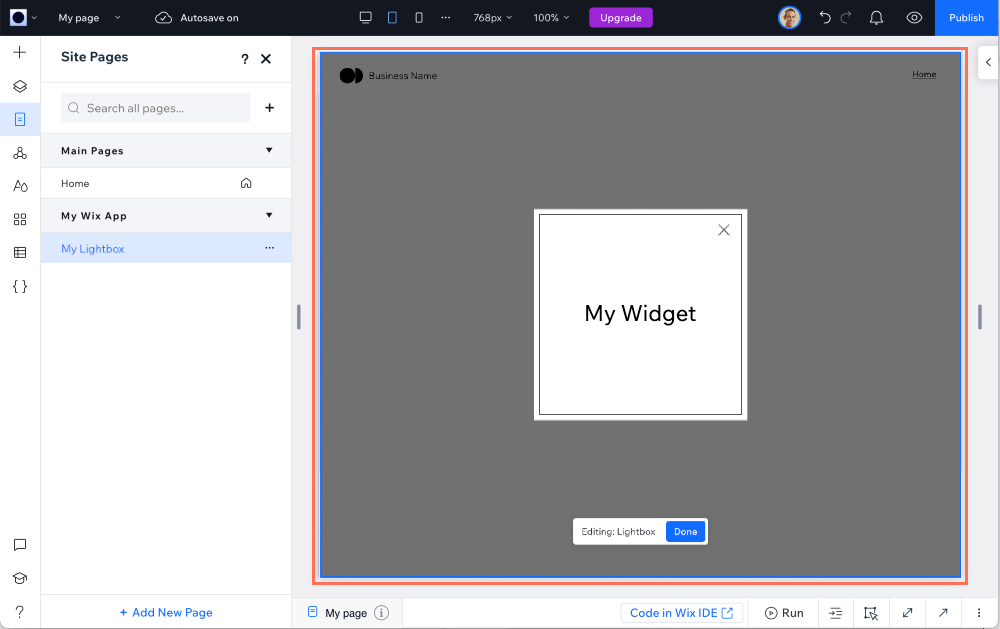
When setting up the popup extension, you can configure the default methods for site visitors to close the popup. The following options are available:
- Clicking the overlay background behind the popup.
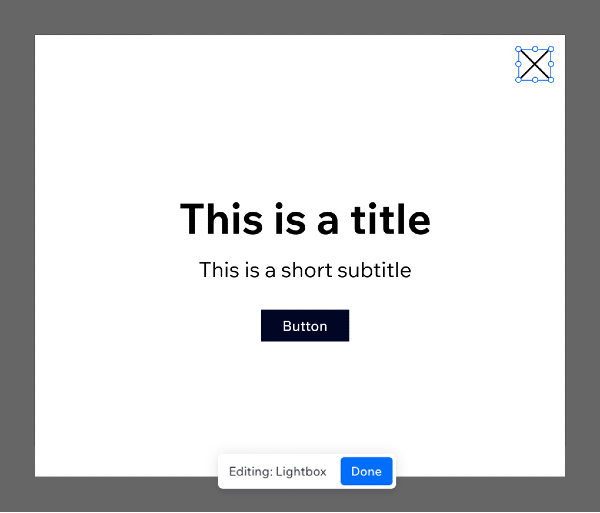
- Clicking an 'X' button. When selected, an 'X' button is added to the top right corner of the popup.
When testing your popup, make sure that the 'X' does not interfere with your design, as shown in the following image:
Implementation options
Once you've created your site widget, setting up a site popup extension only requires configuration in your app's dashboard, with no coding involved.
Add a site popup extension to your app by setting it up in your app's dashboard.
Open and close a popup from your app's code
Your app can trigger the popup from code in its other app extensions, such as a site widget or an embedded script. To do this, use the openLightbox() method. This method requires the unique extension ID of the popup. You can obtain the extension ID by clicking Copy extension ID in the  More Actions menu of your popup extensions in the Extensions page of you app dashboard.
To close the popup from its own code, use the lightbox.close() method. For example, you can add a button inside the popup that calls the close() method and passes data back to the code that initially opened it.
Code example
The following example demonstrates how to use a popup to confirm user details before submission:
- The widget collects user details and opens a popup for confirmation.
- The popup displays the details and provides a Confirm button.
- When the user clicks Confirm, the popup closes and sends a confirmation response to the widget.
- If the user cancels, the widget receives a cancellation response.
Widget code (opens a popup and sends user data)
Popup code (displays and returns the confirmation status)
Last updated: 29 June 2026