About the Code Tab
Deprecated: The AI app builder is deprecated. You can access existing projects in the app workspace until September 17, 2026. To save an existing project, connect it to GitHub. Then you can continue building in your project's repo using the Wix CLI.
The Code tab is a VS Code Web-based development environment in the app workspace where you can edit your app's code directly in the browser.
Note: The Code tab isn't supported in Safari.
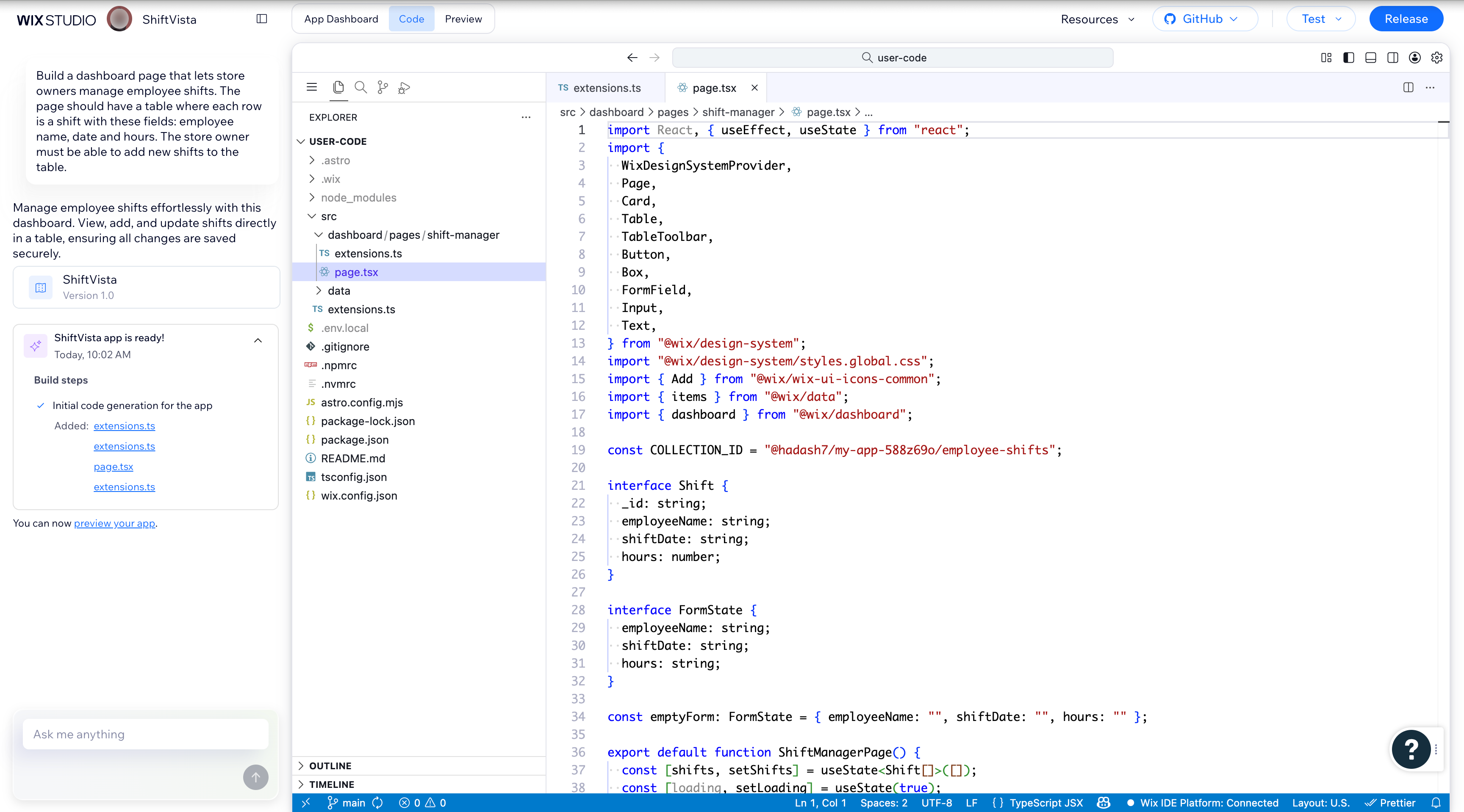
File structure
The Code tab shows Wix-managed extensions built and managed with the Wix CLI. These projects use Astro, a web development framework optimized for performance, with React for UI components.
The src folder holds your app's extensions built with the Wix CLI. Each extension type has its own subfolder, such as dashboard or site. To manage all of your app's extensions, go to the Extensions page in the App Dashboard.
Caution: Only edit files that are in the src folder. Editing other files may cause unexpected behavior or damage to your project.
IDE features
The Code tab includes standard VS Code Web features like syntax highlighting, code navigation, and multi-file editing.
Changes are saved automatically every few seconds.
AI chat
The AI chat sits on the left side of the Code tab. You can request code changes, ask questions, and get explanations. The AI agent reads your project files and makes edits directly in the editor.
To generate dashboard pages, the AI agent uses Auto Patterns, a configuration-driven library that lets you build pages using JSON instead of writing React components manually.
Wix Logs
Wix Logs is a panel in the bottom area of the Code tab, alongside Problems, Output, Debug Console, and Terminal. It centralizes Wix CLI process logs into a single, timestamp-sorted stream so you can monitor and debug what the Wix CLI is doing during development.
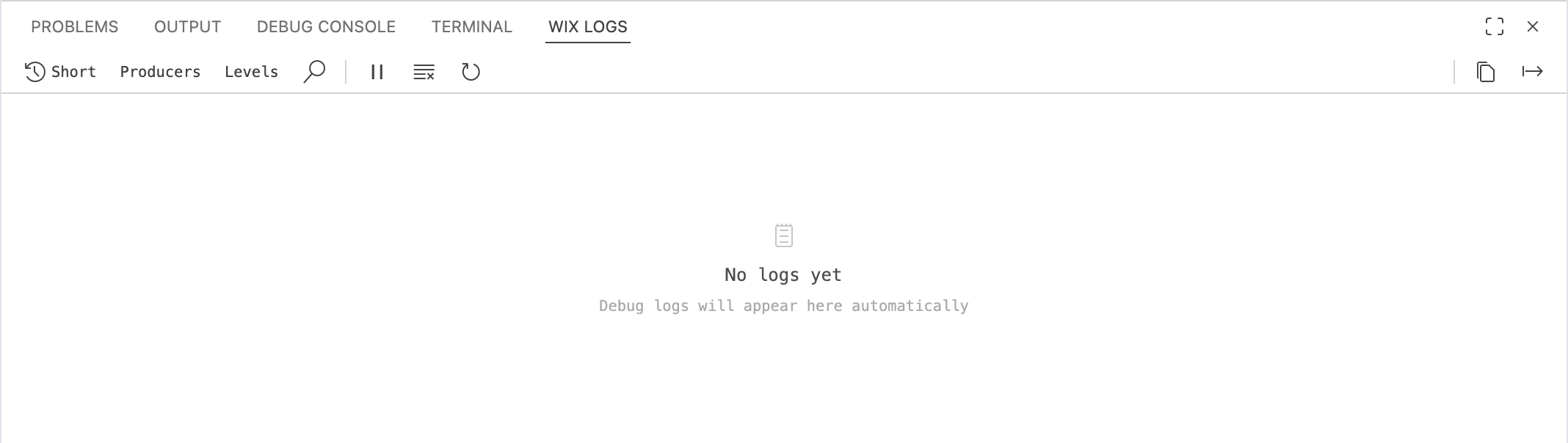
Filters and toolbar
Use the toolbar controls to focus on the logs you need:
- Short: Toggles the timestamp format between short (
HH:MM:SS.mmm) and full ISO. - Producers: Filters logs by the part of the CLI that generated them.
- Levels: Filters logs by severity, which includes
error,warn,info, ordebug. - Search: Searches logs.
- Pause (‖): Pauses the log stream.
- Clear (≡): Clears the current log output.
- Refresh (↺): Reloads the log stream.
GitHub integration
You can connect your app project to a GitHub repository directly from the Code tab. This gives you version control, collaboration, and the flexibility to work in any external IDE. Learn more about GitHub integration.
See also
Last updated: 25 August 2026