Migrate from a Previous Site Widget or Plugin Extension to an Updated Extension
If you've built a new site widget or plugin extension to replace an existing one in your app, follow these instructions so Wix users can transition smoothly. You can't delete the old extension—doing so breaks the widget or plugin for everyone who already has it installed. Keep both extensions in your app: existing installations keep using the original, while new installations get the updated extension automatically.
Important: Keep the previous extension in your app. Deleting it breaks the widget or plugin for Wix users who already installed it on their sites.
Step 1 | Configure the previous extension
Adjust the previous extension's installation settings so that new installs don't add it, while keeping it working for Wix users who already have it installed.
To configure the previous extension:
-
In the app dashboard, go to Develop > Extensions in the left menu.
-
Next to the previous site widget or plugin extension you want to replace, click Configure.
-
Configure the following:
For widgets:
- Where is the widget added when the app is installed?: Select Not added automatically so the widget isn't automatically added to sites that install your app later.
- Show this widget in the Add Elements panel: Turn off this option so the previous widget doesn't appear in the Add Elements panel for Wix users.
For plugins:
- Plugin name: Rename the plugin and add "Old" or "Previous" to the name so the previous plugin doesn't appear as a viable option in the plugin explorer for Wix users.
- Add this plugin automatically: Turn off this option so the plugin isn't automatically added to sites that install your app later.
-
Click Save.
Step 2 | Notify Wix users who already installed the previous extension about the updated extension
Tell Wix users who already have the previous extension installed that an updated version is available. You can show the message in either of these places:
- Settings panel: Add a notification banner or message at the top of the previous extension's settings panel.
- In the extension: Show a message inside the widget or plugin that's visible only in the editor, not on the live site.
Your notification should:
- Explain that an updated extension with improved features is available.
- Tell Wix users where to find the updated extension:
- For widgets: In the Add Elements panel
- For plugins: In the plugin explorer
- Provide instructions on how to replace the previous extension with the updated extension.
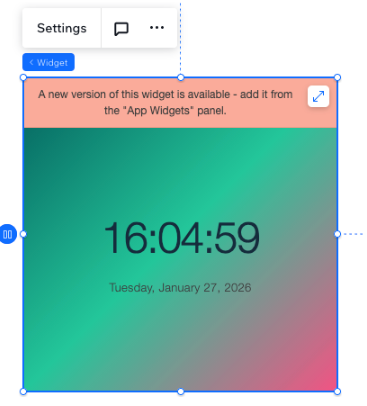
Step 3 | Configure the updated extension
Configure the updated extension to be visible to Wix users and automatically added to sites when Wix users install your app for the first time.
To configure the updated extension:
-
In the app dashboard, go to Develop > Extensions in the left menu.
-
Next to the updated site widget or plugin extension, click Configure.
-
Configure the following:
For widgets:
- Where is the widget added when the app is installed?: Select Added to the site homepage or Added to a site page to automatically add the widget when Wix users install your app for the first time.
- Show this widget in the Add Elements panel: Turn on this option so the updated widget appears in the Add Elements panel.
For plugins:
- Plugin name: Ensure the plugin name doesn't include "Old" or "Previous" so it appears as a viable option in the plugin explorer.
- Add this plugin automatically: Turn on this option and select the appropriate slot so the plugin is automatically added when Wix users install your app for the first time.
-
Configure the default preset and any other installation settings as needed.
-
Click Save.
Step 4 | Release so both extension configurations take effect
Release your app so the previous extension is hidden for new installs and the updated extension is available. When available, release as a minor version so that Wix users on the current major version immediately see the updated extension in the Add Elements panel for widgets or in the plugin explorer for plugins, and receive the update automatically.
-
If your app includes extensions built with Blocks, you need to release in the Blocks editor so those extension configurations take effect. See Manage Blocks App Versions.
-
If your app includes extensions built with other frameworks, release using whichever method matches your app's framework:
- Self-managed: Follow the steps in Release a New App Version.
- Wix CLI: Run the
wix releasecommand.
Note: If Minor version isn't available or appropriate for your changes, you may need to release a Major version. However, major updates require Wix user action to install, so use the major version option only when necessary.
Special considerations
For legacy custom element widgets and iframes
Legacy custom element widgets and iframe components don't show in the Add Elements panel by default. To mark these as not added to the site, contact Wix support for assistance.
See also
Last updated: 29 June 2026