Display a Site Widget in the Add Panel and Site Dashboard
You can display your site widget in the following areas:
- The Add Elements panel in the site editor.
- The Manage Apps page in the site dashboard.
Note: Essential widgets are automatically added to a site when an app is installed and can only appear once, so they don't appear in the Add Elements panel or the Manage Apps page.
When creating your site widget, configure the following content:
- A short description of the widget's functionality, which appears in an info tooltip.
- A preview image showcasing the widget's appearance.
Learn more about creating a custom element site widget:
- Add a Custom Element Site Widget Extension in the CLI
- Add Self-Managed Site Widget Extensions with Custom Elements
Add Elements panel
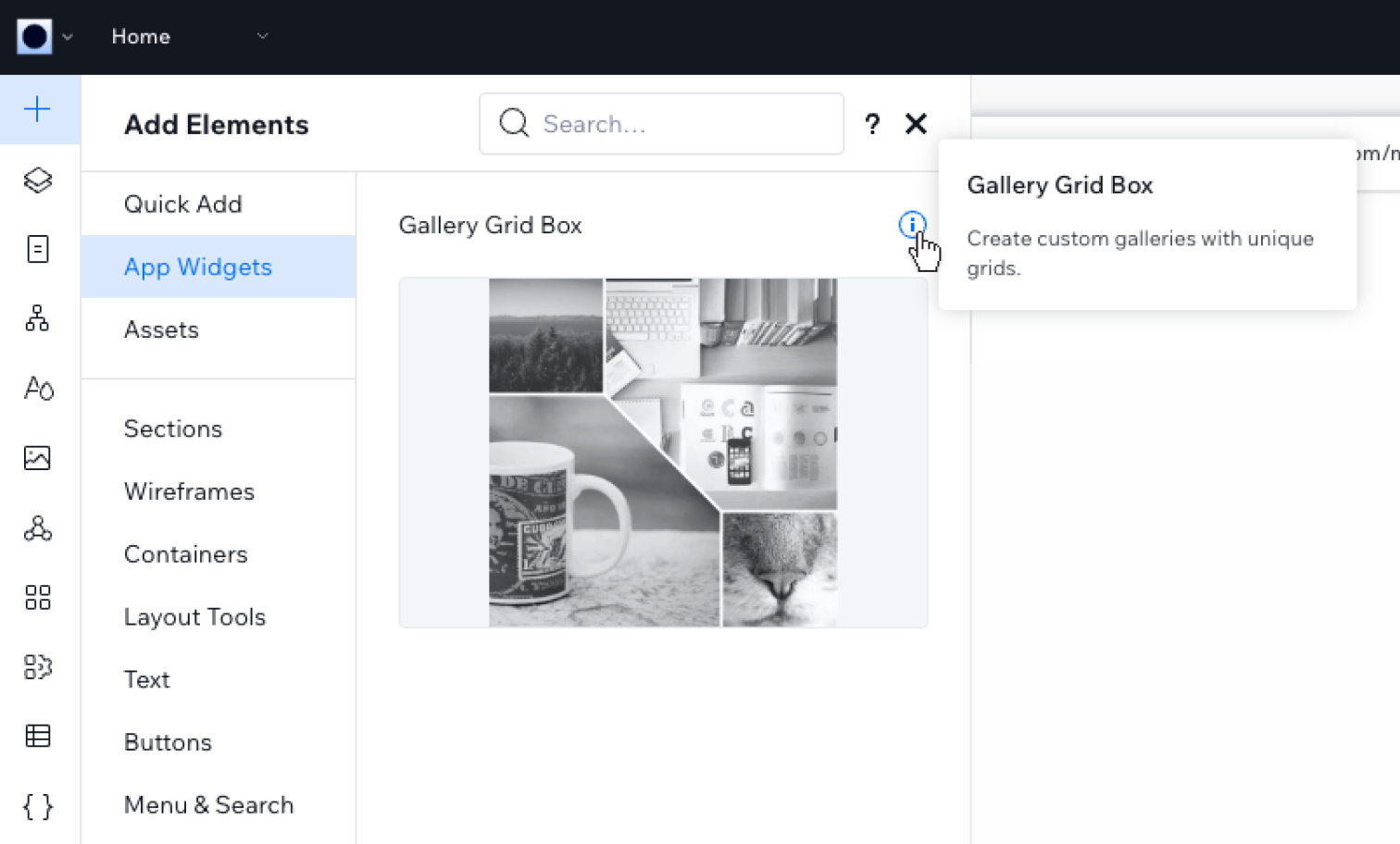
Your widget appears in the panel's App Widgets section. Wix users can find it there and add it to any page on a site.
The following image shows how a widget appears in the panel:
Manage Apps page
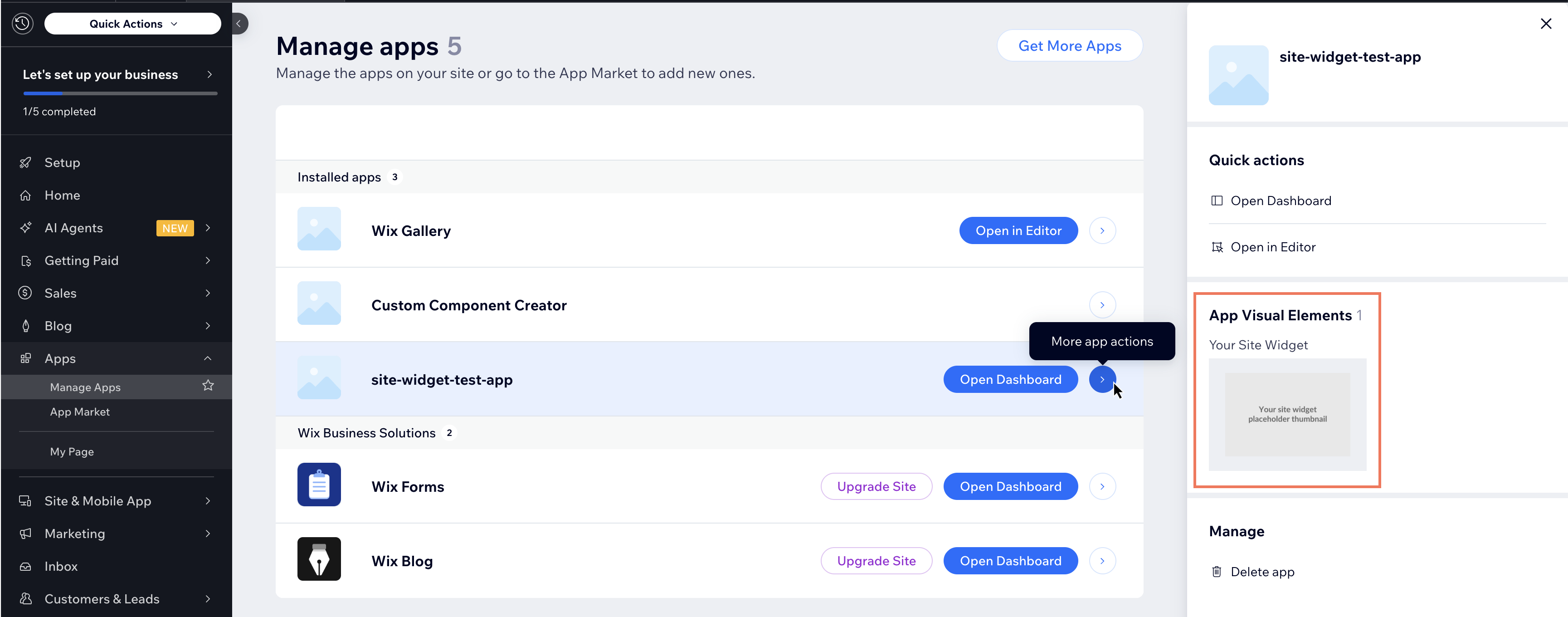
Your widget appears in the Manage Apps page of the site dashboard. Wix users can find it listed under your app and add it to any page on a site.
The following image shows how a widget appears in the Manage Apps page:
Guidelines for creating a preview image
The preview image you provide appears in both the Add Elements panel and the Manage Apps page. When creating your preview image, keep the following content and technical guidelines in mind.
Content guidelines
- The image should be a visual representation of the preset. It's not a banner or an ad.
- If your widget displays dynamic content, include dummy content but avoid Lorem Ipsum.
Technical guidelines
- Use a screenshot of the widget to capture its actual dimensions and original pixel size.
- Save at the highest quality and avoid compression.
- Supported formats: JPG or PNG
Last updated: 17 June 2026