Add Self-Managed App Tool Extensions with REST
Add an App Tools extension to your app to expose your app's capabilities to Aria, Wix's AI assistant. After a Wix user installs your app, Aria can discover and invoke the tools your app declares, allowing Wix users to interact and perform actions with your app through natural language.
This article covers the REST implementation. If you prefer a different approach, see:
Follow these steps to implement a self-managed app tools extension with REST:
Step 1 | Add an App Tools extension
Declare the tools your app exposes to Aria in the app dashboard.
To add an App Tools extension to your app:
-
Select an app from the Custom Apps page in your Wix Studio workspace.
-
On the Extensions page, click + Create Extension.
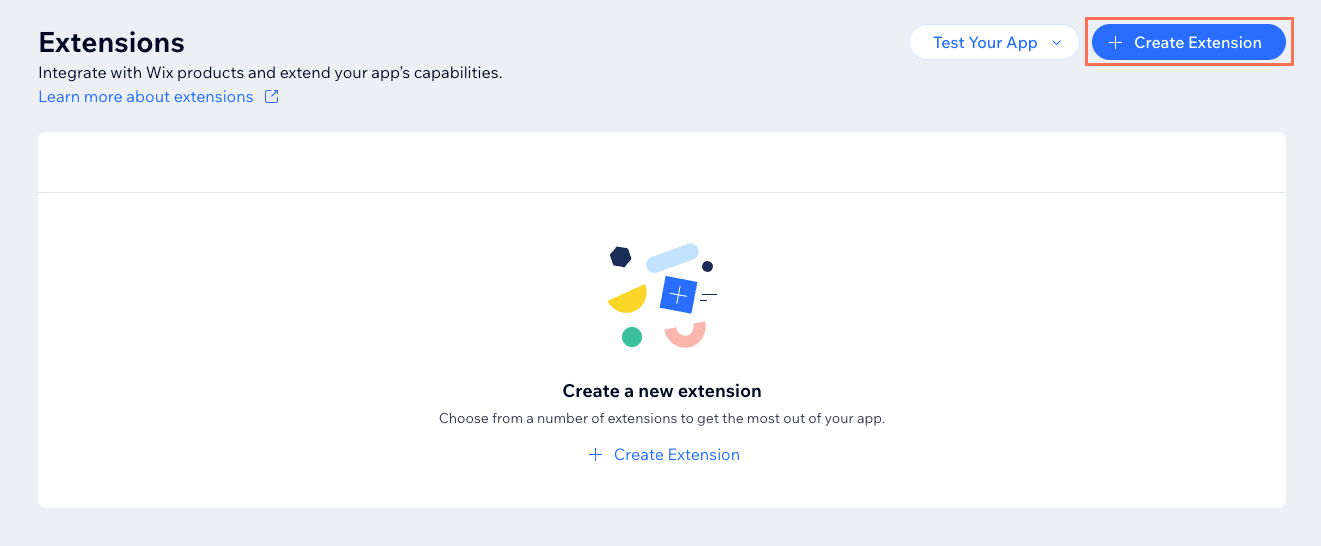
-
Search for App Tools and click + Create.
-
In the JSON editor, configure your tools by referencing the Documentation panel on the right side of the page.
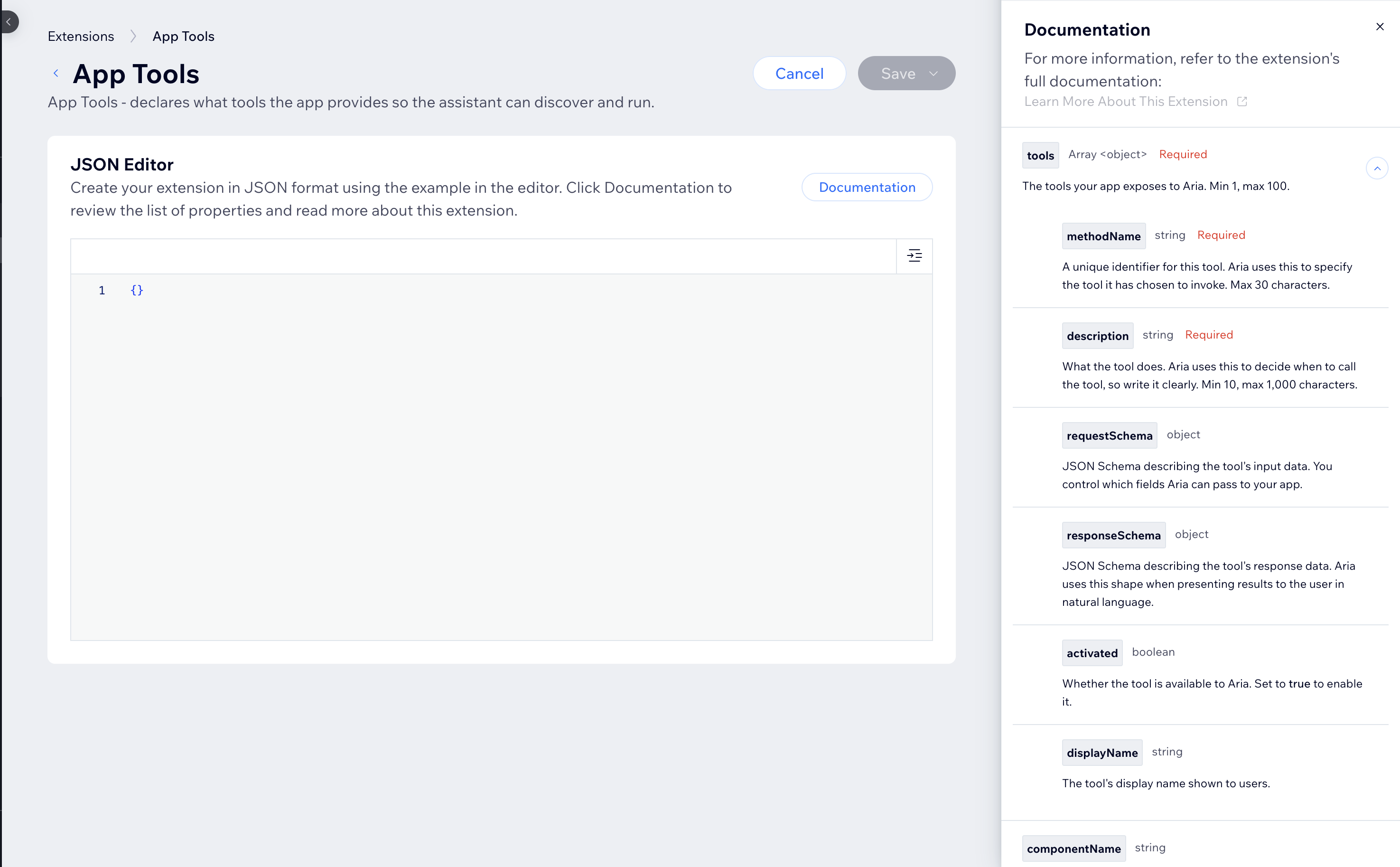
The following example configures a package tracking tool:
CopyNote: Write each tool
descriptioncomprehensively. Aria compares the Wix user's request against each tool's description to decide which tool to call. A vague description reduces the chance that Aria selects the right tool at the right time. Learn more about effective tool descriptions. -
Click Save.
Step 2 | Add a Tools Provider service plugin
Add a Tools Provider service plugin to your app. When Aria invokes one of your tools, Wix sends a POST request to {baseUri}/v1/run-tool on your server. In this plugin, you set baseUri to the URL where your app is hosted so Wix knows where to send that request.
To add a Tools Provider service plugin:
-
On the Extensions page, click + Create Extension again.
-
Search for Tools Provider Config and click + Create.
-
In the JSON editor, set
baseUrito the base URL where you host your app. Reference the Documentation panel for the full schema.Copy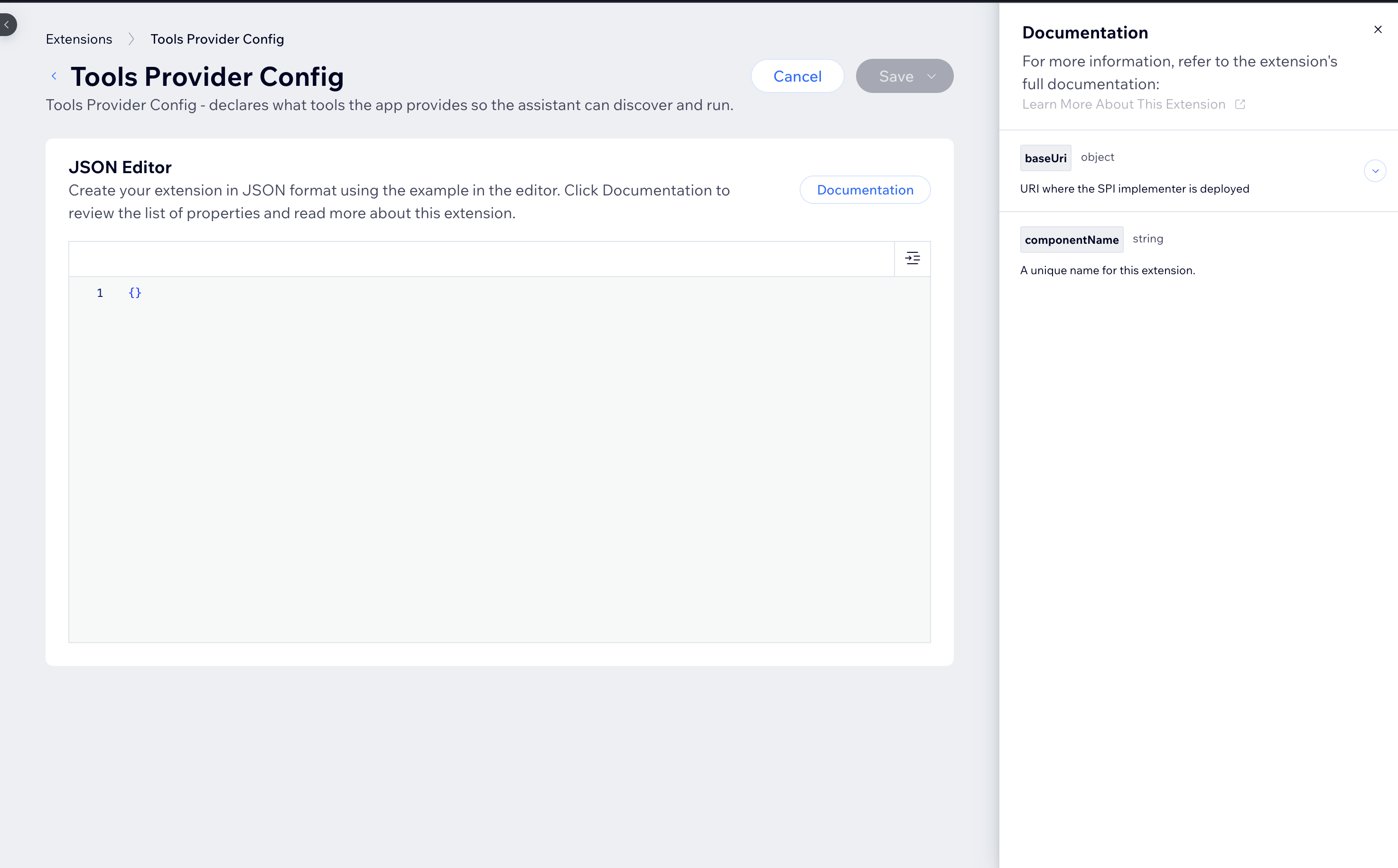
-
Click Save.
Step 3 | Retrieve your app's credentials
Retrieve the credentials your endpoint uses to validate incoming JWTs and authenticate Wix API calls.
To validate incoming JWT requests and call Wix APIs, retrieve the following credentials from your app's dashboard:
- App ID: Required. Used to verify the
audfield in incoming JWTs. - Public Key: Required. Used to verify the JWT signature.
- App Secret Key: Only required if your endpoint calls Wix APIs.
- Instance ID: Only required if your endpoint calls Wix APIs. Identifies the app instance on the site that triggered the tool.
To retrieve your credentials:
- In your app dashboard, click the More Actions icon in the top right.
- Select View ID & Keys.
- Click Show and copy the App ID and Public Key. If your endpoint calls Wix APIs, also copy the App Secret Key.
There are several ways to retrieve an app's instance ID. Learn more about identifying the app instance in backend environments.
Step 4 | Implement the Run Tool endpoint
Create an HTTP endpoint at {baseUri}/v1/run-tool that Wix calls when Aria invokes one of your app's tools. Your endpoint must:
- Validate the incoming JWT.
- Extract
methodNameandpayloadfrom the request envelope. - Run your logic for the specified
methodName. - Return your tool output wrapped inside a
responseobject. The fields should match theresponseSchemayou configured in Step 1.
Request envelope
Wix wraps each request your endpoint receives in a signed envelope with metadata.
The request body is a JSON Web Token (JWT). After you verify and decode the JWT, the decoded token has the following structure:
The data.request fields are:
methodName: The name of the tool Aria is invoking. Matches amethodNameyou declared in your App Tools extension.payload: The input the tool receives, matching therequestSchemayou configured in Step 1.
The data.metadata fields are:
requestId: Unique identifier for the request. Log this to help with future debugging and to correlate with Wix logs.instanceId: The site's installation ID. Use this to identify which site triggered the call, and to make outbound Wix API calls on behalf of that site.appExtensionId: The ID of the App Tools extension Wix invoked.functionName: Always"RunTool"for App Tools requests.appExtensionType: Always"TOOLS_PROVIDER_CONFIG"for App Tools requests.identity: Describes the entity that triggered this request, with the following structure:identityType: Type of identity that triggered the request. See About Identities.anonymousVisitorId: ID of the anonymous site visitor, when present.memberId: ID of the site member, when present.wixUserId: ID of a Wix user, when present.appId: ID of an app, when present.
The top-level JWT fields are:
aud: Your app's ID. Verify this value matches your App ID to confirm Wix issued the token for your app.iss: The token issuer. Always"wix.com". Verify this value to confirm the token came from Wix.iat: Unix timestamp of when Wix created the token. Verify this timestamp is before the current time on your server.exp: Unix timestamp of when the token expires. Verify this timestamp is after the current time on your server.
Validate request signatures
Verify the JWT to protect against malicious requests impersonating Wix:
- Verify the JWT signature using the public key from your app's credentials.
- Verify that
audmatches your App ID. - Verify that
issiswix.com. - Verify that
iatis before the current time on your server. - Verify that
expis after the current time on your server.
We recommend that you use a standard library to parse and validate the JWT. There are libraries available for all popular languages. See the list of JWT libraries.
The following example implements this using Express and the jsonwebtoken library:
Notes:
- When verifying the JWT, read the body as a string. Common frameworks parse JSON bodies by default, which can cause errors when verifying the JWT.
- Wix doesn't validate
payloadagainst yourrequestSchemabefore calling your endpoint. Handle missing or unexpected fields in your implementation. - If your implementation returns an error or times out, Aria continues the conversation without the tool result.
Call Wix APIs from your endpoint
If your Run Tool logic needs to read or write site data with Wix REST APIs, authenticate as an app instance using OAuth. Each call needs an access token scoped to the site that triggered the tool.
For tool calls, the inbound JWT already carries the site's instanceId in metadata.instanceId, so you don't need to look it up. Pass that value, along with your App ID and App Secret Key, to Create Access Token:
Include the returned access_token as the Authorization header in your Wix API calls.
For the full flow, including how apps get instanceId outside of tool calls, see Authenticate Using OAuth.
See also
Last updated: 8 September 2026