Add Self-Managed App Tool Extensions with the SDK
Add an App Tools extension to your app to expose your app's capabilities to Aria, Wix's AI assistant. After a Wix user installs your app, Aria can discover and invoke the tools your app declares, allowing Wix users to interact and perform actions with your app through natural language.
This article covers the SDK implementation. If you prefer a different approach, see:
Follow these steps to implement a self-managed app tools extension with the Wix JavaScript SDK:
Step 1 | Add an App Tools extension
Declare the tools your app exposes to Aria in the app dashboard.
To add an App Tools extension to your app:
-
Select an app from the Custom Apps page in your Wix Studio workspace.
-
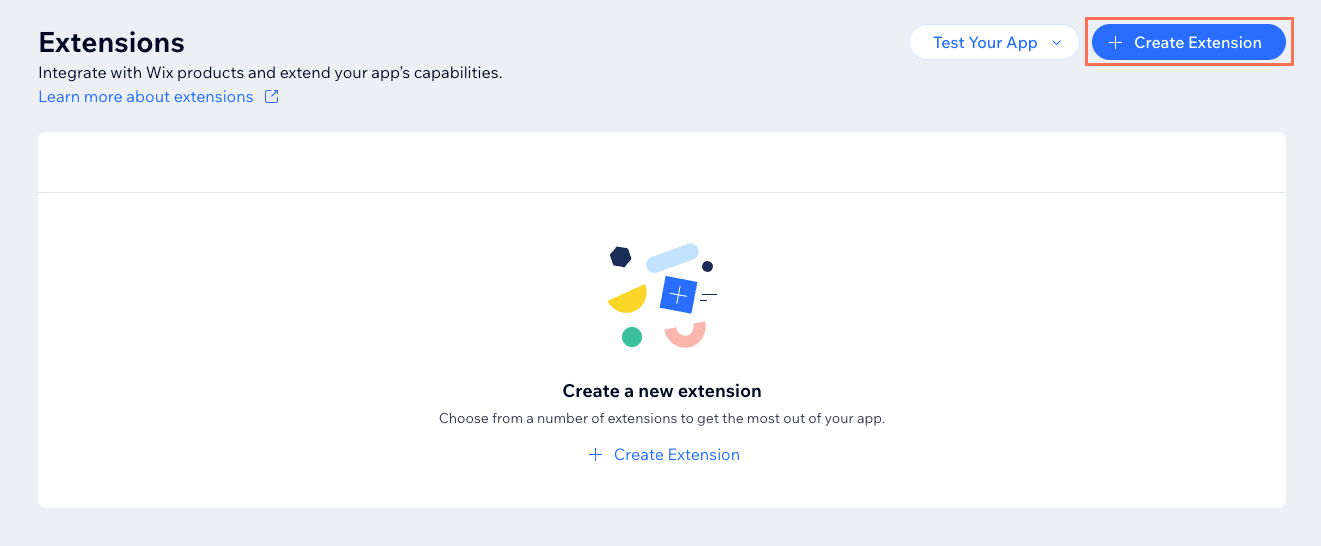
On the Extensions page, click + Create Extension.
-
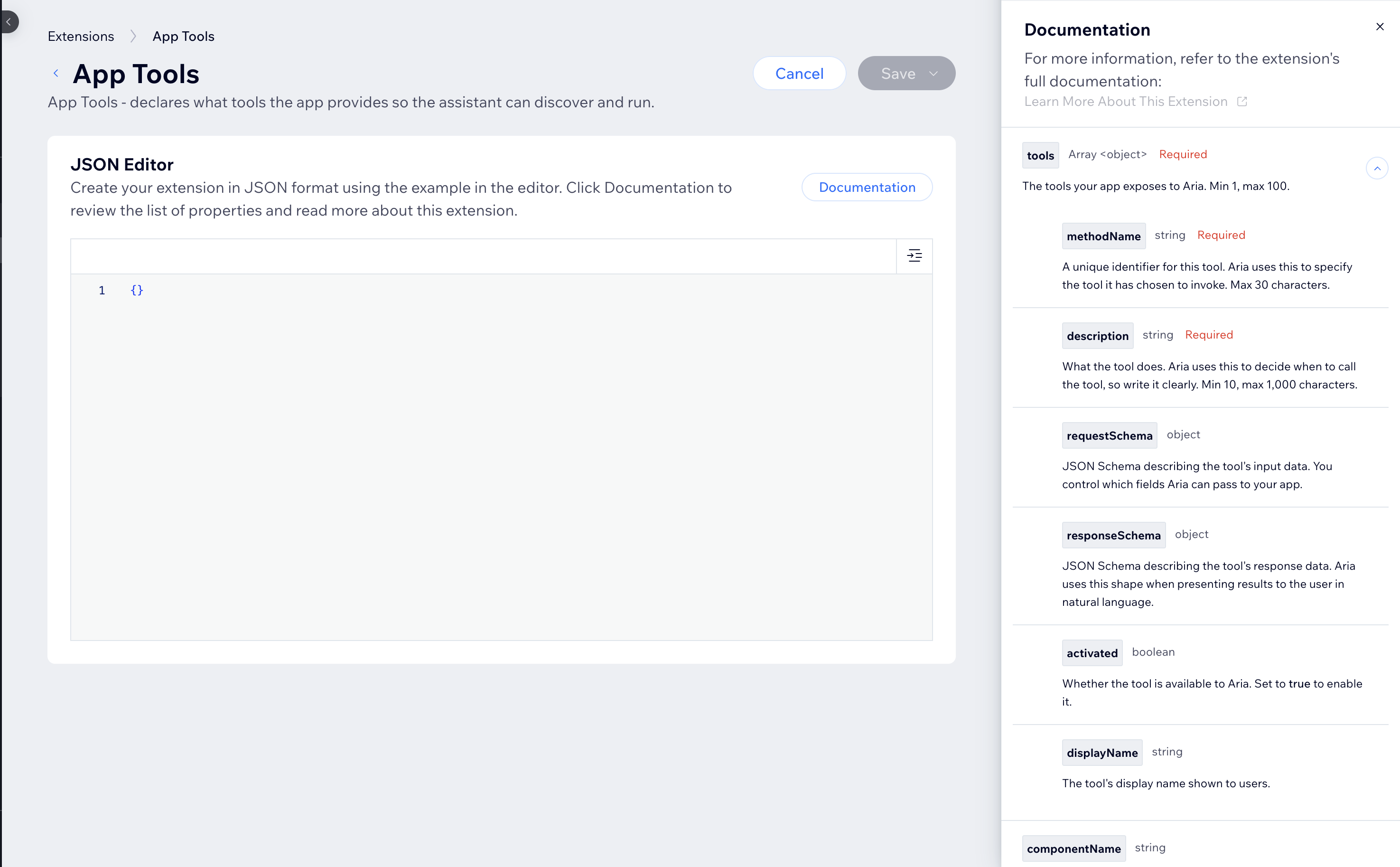
Search for App Tools and click + Create.
-
In the JSON editor, configure your tools by referencing the Documentation panel on the right side of the page.
The following example configures a package tracking tool:
Note: Write description comprehensively. Aria reads it to decide when to call your tool. Be specific about what the tool does, when to use it, and what input it expects. Learn more about effective tool descriptions.
- Click Save.
Step 2 | Add a Tools Provider service plugin
Add a Tools Provider service plugin to your app. When Aria invokes one of your tools, Wix sends a POST request to {baseUri}/v1/run-tool on your server. In this plugin, you set baseUri to the URL where your app is hosted so Wix knows where to send that request.
To add a Tools Provider service plugin:
-
On the Extensions page, click + Create Extension again.
-
Search for Tools Provider and click + Create.
-
In the JSON editor, set
baseUrito the base URL where you host your app. Reference the Documentation panel for the full schema.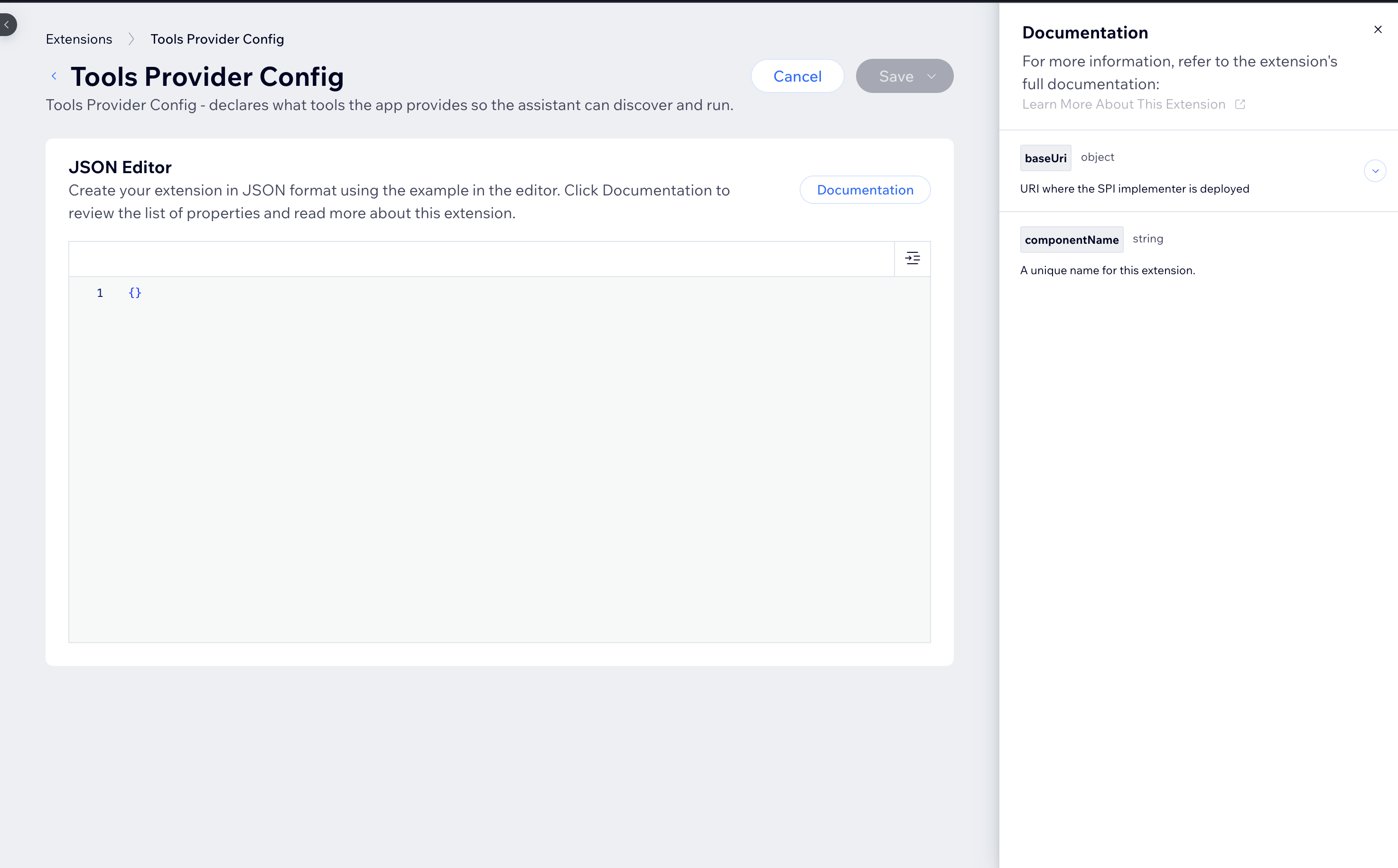
-
Click Save.
Step 3 | Retrieve your app's credentials
Retrieve the following:
- App ID: Required. Your app's unique identifier.
- Public Key: Required. Used to verify the authenticity of requests from Wix.
- App Secret Key: Only required if your handler calls Wix APIs.
- Instance ID: Only required if your handler calls Wix APIs. Identifies the app instance on the site that triggered the tool.
To retrieve your dashboard credentials:
- In your app dashboard, click the More Actions menu on the top right.
- Select View ID & Keys.
- Click Show and copy the App ID and Public Key. If your handler calls Wix APIs, also copy the App Secret Key.
There are several ways to retrieve an app's instance ID. Learn more about identifying the app instance in backend environments.
Step 4 | Create a client
Import the Wix client and toolsProvider module in your app code. Then call createClient() with the AppStrategy auth strategy and credentials you retrieved in step 3:
Step 5 | Define your tool handlers
Call provideHandlers() to register your tool logic. Wix calls runTool when Aria invokes one of your app's tools. Route on methodName to run the correct logic for each tool:
The runTool handler receives the following:
request.methodName: The name of the tool Aria is invoking.request.payload: The input the tool receives, matching therequestSchemaconfigured in Step 1.
Note: If your implementation returns an error or times out, Aria continues the conversation without the tool result.
Step 6 | Expose a route
Define a route to handle POST requests from Wix.
In the route, call wixClient.servicePlugins.process() and pass it the request URL and raw body. This method verifies and decodes the signed JWT, then routes the request to the handler you define with provideHandlers().
Note: Make sure to parse the body as text. Wix sends a signed JWT as a string, and the process() method verifies it. Common frameworks parse JSON bodies by default, which can cause errors when verifying using the process() method.
The following exposes a route using Express:
Full code example
Here's a complete implementation for a getPackageTracking tool:
See also
Last updated: 8 September 2026